In this step, you will save the segmentation results and export to a file the surface of the different tissues you segmented in the previous step.
The Interface:
In this step, sliceOmatic is placed in Mode "Display 2D".
Only one image window is displayed and it is in "Mode One".
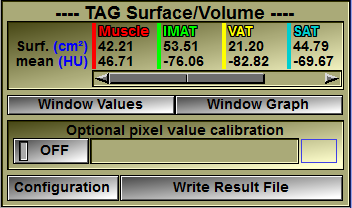
The "TAG Surface/Volume" tool is open
What to do:
Exporting the surfaces
|
|
Simply click on the "Write Result File" button of the "TAG Surface/Volume" tool's interface to save your results.
This will open a Windows browser where you can select the name and location of the file to save.
The saved file will have a ".csv" extension and a double click on it will open that file in Excel.
If you select the name of a file that already exist, you will be presented with the option of overwriting the existing file or appending the new results to the existing file.
If you desire to have a header giving some patient information in the result file, you can change the default configuration window, or from the File/Config interface ("File" tab) if you want these changes to be applied each time you restart the program.
You can see an example of the result file in Excel here.
|
|
Saving the segmentation (TAG) data
|
|
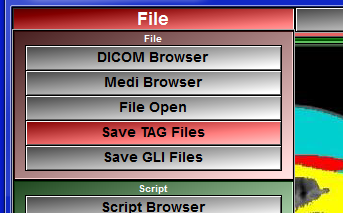
From the "File" menu, click on the "Save TAG Files" button.
This will create a file containing the segmentation (TAG) results. By default this file will be in the same directory as the file of the analyzed CT image. The created file will have the same name as the analyzed CT but with the ".tag" extension appended to it.
If you do not explicitly save the TAG file, you will be reminded that this file has not been saved when either you exit the program or close the analyzed image.
|
|
Note:
|
|
By default, both the surface (in cm2) and the mean value (in Hounsfield) of the pixels under the different tags will be saved. If you want to change these default, just click on the "Configuration" button to access a configuration window.
|
Note:
|
|
By default, sliceOmatic will use a period (.) to separate the fraction in a real value. You can change this to a comma (,) in the configuration window.
|